Drive a real iPhone with AI: a hands-on guide to ESP32 iPhone Agent
Driving an iPhone with software usually means XCTest and WebDriverAgent: a Mac, Xcode, a signed helper app, and an Apple developer account whose free signature expires every seven days. ESP32 iPhone Agent (onehumanbeing/esp32-iphone-agent) skips all of that. It uses the same paths a person uses — the screen and a pointer. A roughly $7 ESP32-S3 board plugs into the phone's USB port and shows up as a standard USB mouse and keyboard; the phone mirrors its screen to your computer over AirPlay; any OpenAI-compatible vision model plans the taps and swipes. The phone needs nothing installed — no developer mode, no helper app, no jailbreak. This tutorial flashes the board, starts the server, and puts the phone through its first task.
- Tested with the Seeed Studio XIAO ESP32S3 (~$7); any ESP32-S3 whose USB-C port is wired to the chip’s native USB works; USB-C iPhones plug straight in, Lightning models need a Lightning-to-USB Camera Adapter; the phone powers the board.
- The phone needs nothing installed — no developer mode, no helper app, no jailbreak: the agent uses the screen and a pointer, the same paths a person uses.
- The computer (macOS or Linux, same network as the phone) runs UxPlay (the AirPlay receiver) and the Python agent server; the web UI lives at http://<computer-ip>:8890.
- Flashing: install arduino-cli and the ESP32 core (3.x), copy hardware/hid_bridge/secrets.example.h to secrets.h, edit in 2.4 GHz Wi-Fi credentials and the server computer’s IP, then run hardware/flash.sh.
- The board speaks a one-command-per-line protocol: ping, home, move <dx> <dy>, click, scroll <v> <h>, type <text>, key <combo>; any vision model behind an OpenAI-compatible chat API plans the taps (env: LLM_BASE_URL / LLM_MODEL / LLM_API_KEY).
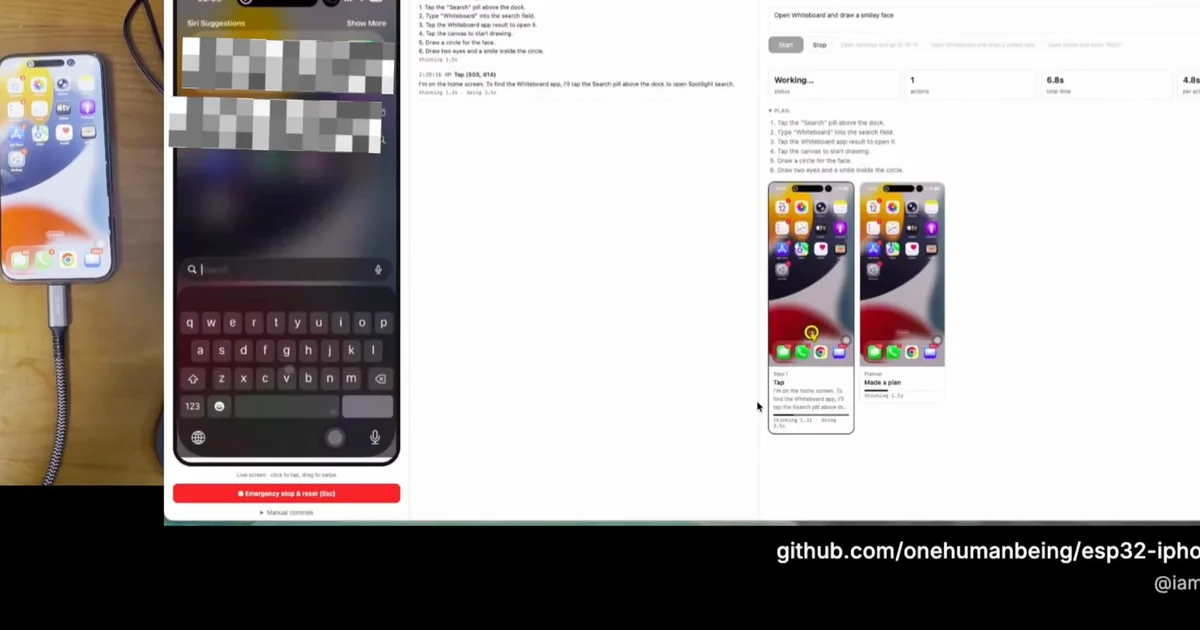
What you’ll need
- An ESP32-S3 board — tested with the Seeed Studio XIAO ESP32S3 (~$7); any ESP32-S3 whose USB-C port is wired to the chip's native USB works.
- An iPhone — USB-C models plug straight in; Lightning models need a Lightning-to-USB Camera Adapter. The phone powers the board.
- A computer — macOS or Linux, on the same network as the phone. It runs the AirPlay receiver and the Python server.
- A vision model behind any OpenAI-compatible chat API. A cloud API is enough to start.
Step 1 — flash the board
Install arduino-cli and the ESP32 core (3.x), then copy the secrets template and edit in your 2.4 GHz Wi-Fi credentials and the IP of the computer that will run the server:
cp hardware/hid_bridge/secrets.example.h hardware/hid_bridge/secrets.h
# edit secrets.h: Wi-Fi name/password, and the server computer's IP
hardware/flash.sh            # optional: [serial port] [--debug]
The board holds no logic — the README spells out its one-command-per-line protocol (ping, home, move <dx> <dy>, click, scroll <v> <h>, type <text>, key <combo>), so you can sanity-check it over TCP if anything misbehaves.
Step 2 — install and start the server
The computer runs UxPlay (the AirPlay receiver) and the agent server:
# macOS:
brew install uxplay
# Debian / Ubuntu:
sudo apt install uxplay gstreamer1.0-plugins-good gstreamer1.0-plugins-bad gstreamer1.0-libav

cd server
python3 -m venv .venv && .venv/bin/pip install -e .
cp .env.example .env   # set LLM_BASE_URL / LLM_MODEL / LLM_API_KEY
set -a && . ./.env && set +a && .venv/bin/python -m hidagent
Open http://<computer-ip>:8890 in a browser.
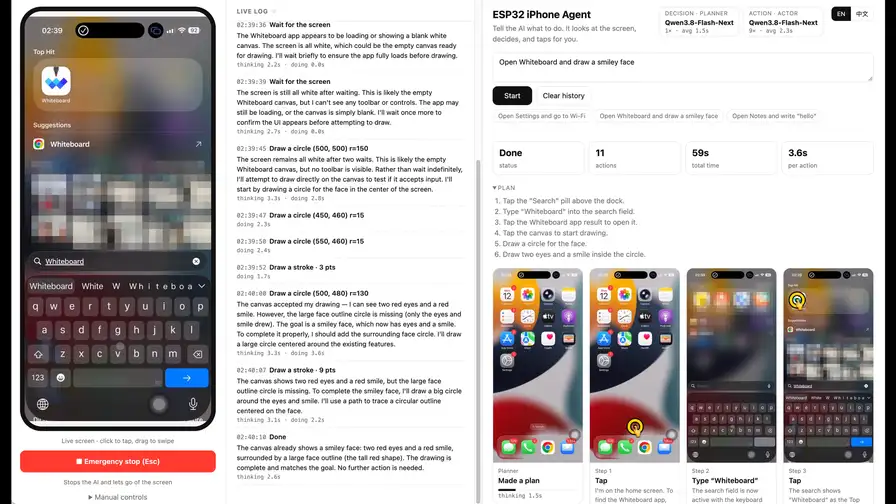
Step 3 — set up the phone (once)
- Settings → Accessibility → Touch → AssistiveTouch: turn it on. This is what lets the USB mouse move a pointer on iOS.
- Plug the board into the phone. A round pointer appears; the web page shows controller connected.
- Control Center → Screen Mirroring → iPhone Agent. The live screen appears in the web page.
- In the web page, open Manual controls → Calibrate. The server wiggles the pointer, finds it on the mirrored screen, and calibrates itself in a few seconds.
Step 4 — give it a task
Type a goal — for example Open Settings and go to Wi-Fi — and press Start. Try the canonical demo: Set an alarm for 7:00 AM that repeats every day, then save it. The agent opens Clock, types 0700 into the time wheel, ticks the days under Repeat several taps at a time, and saves. Every step's screenshot stays on the step wall with the tap or stroke drawn on top, plus the model's reasoning and timings.
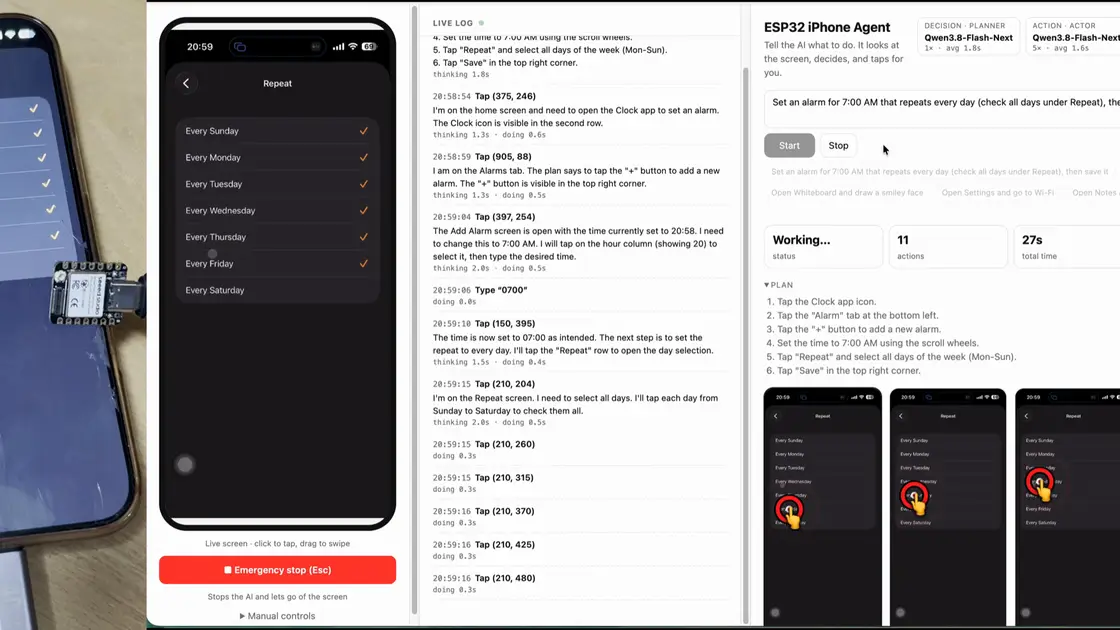
Step 5 — peek under the hood
A planner model writes a short plan from the goal and the current screen; an actor model looks at each new screenshot and picks the next action: tap, swipe, draw a path, type, press a key, go home, or finish. Both roles can be the same model. The closed loop is what makes it robust: the pointer is relative, so before each tap the server wiggles it, finds it on the mirrored screen, and corrects any miss — and after each action it checks whether the screen actually changed, retrying a missed tap instead of building on it.
Turn on HIDAGENT_DEBUG=1 to save one folder per run under ~/.hidagent/traces/ — every model call (prompt, raw reply, latency) in steps.jsonl plus the screenshot each call saw. That's the cheapest way to understand why the agent did what it did.
What you built
A computer-use loop for a real iPhone: AirPlay as the eyes, a $7 ESP32-S3 as the hands, and any vision model as the brain — with a web UI for manual driving, a live log, a step wall, and an emergency stop (Esc) that halts the agent and releases the pointer.
Honest limitations
- Some screens stay invisible. iOS doesn't mirror passcode entry, Apple Pay, or DRM video; the agent can't see those. Mirroring also stops when the phone locks — keep auto-lock off while it works.
- Portrait only. Screen coordinates and calibration assume portrait; in landscape apps taps land in the wrong place. Keyboard input is ASCII only for now.
- Calibrate after touching AssistiveTouch. Changing the tracking speed invalidates calibration — re-run it.
- The speed numbers are the author's own. The ~1.3 s per action figure was measured with a Qwen3.8-Flash model on two DGX Sparks with thinking off. Your latency depends on your model, your network, and whether AirPlay behaves.
- Watch it work. The project says it plainly: only automate devices and accounts you own, respect the apps' terms, keep the emergency stop within reach.