Turn any document into an editable PowerPoint deck: hands-on with PPT Master
Every AI slide tool promises the same thing: describe a deck, get a deck. What comes back is usually a flattened image you can’t touch. PPT Master takes the opposite bet — it hands you PowerPoint’s native object model itself: shapes with working adjustment handles, data-backed charts and tables, real slide masters and layouts, all natively editable. It’s a workflow (a “skill”) that runs inside any agent-capable AI tool: tell it in chat — “make a deck from this PDF” — and it runs on your machine and exports a real .pptx. It passed 60,000 GitHub stars this month. This tutorial installs it, feeds it a document, and generates your first deck.
- PPT Master (hugohe3/ppt-master) is free and open source (MIT); the only cost is model usage. It passed 60,000 GitHub stars this month.
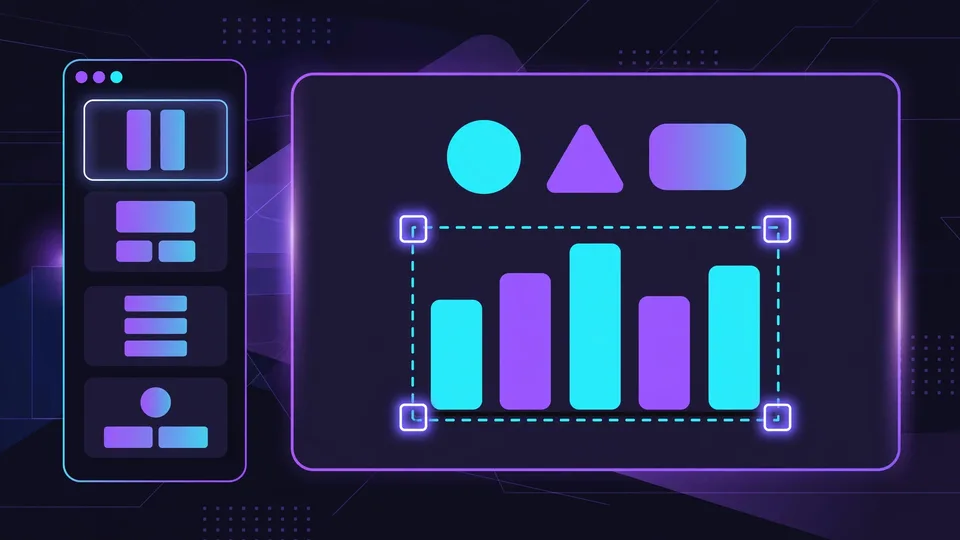
- The output is PowerPoint's native object model: shapes with working adjustment handles, data-backed charts and tables, real slide masters and layouts, text that stays editable, and formulas compiled to editable OMML (PowerPoint 2010+) — a deck you keep refining, not a flattened image.
- You need: Python 3.10+, pip install -r requirements.txt, an agent-capable AI tool (Claude Code, Codex CLI, Gemini CLI, Cursor, Cline or an IDE agent panel), a model key — Kimi K3 or Claude with a large (~1M token) context window recommended — and Pandoc (sudo apt install pandoc, or brew install pandoc).
- Install: git clone https://github.com/hugohe3/ppt-master.git and pip install -r requirements.txt (or Download ZIP); add it as a skill with 'npx skills add hugohe3/ppt-master' or in Claude Code via '/plugin marketplace add hugohe3/ppt-master' then '/plugin install ppt-master@ppt-master'.
- Generate: put PDF, DOCX or images in projects/, tell the chat which files to use ('make a deck from this PDF'); the deck lands in exports/<name>_<timestamp>.pptx, with self-contained page previews in svg_final/ for review without opening PowerPoint.
- Power features: --native-charts-and-tables for real PowerPoint Chart/Table objects; image backends via image_gen.py --list-backends, free stock search with zero config (Openverse/Wikimedia Commons, better with PEXELS_API_KEY/PIXABAY_API_KEY in .env); templates distilled from your reference decks; SmartArt is a deliberate omission.

What you’ll need
- Python 3.10+ — the only hard install. Everything else comes from one
pip install -r requirements.txt. - An agent-capable AI tool — any chat that can read and write files, run commands, and sustain a multi-turn conversation: Claude Code (the author’s pick, and the environment the project is tested on most), Codex CLI, Gemini CLI, Cursor, Cline, or an IDE extension with an agent panel.
- A model key — PPT Master itself is free and open source (MIT); the only cost is your model usage. The recommended pairing is Kimi K3 (or Claude) with a large (~1M token) context window, plus an image model (
gpt-image-2or Google’sgemini-nano-banana-2.1) if you want generated imagery. - Pandoc — the document-conversion backend:
sudo apt install pandocon Debian/Ubuntu,brew install pandocon macOS. Windows users get a dedicated step-by-step guide (check “Add to PATH” when installing Python).
1. Clone the project and install dependencies
The recommended path is a git clone, so you can pull updates later:
git clone https://github.com/hugohe3/ppt-master.git
cd ppt-master
pip install -r requirements.txt
No git? Click Code → Download ZIP on the GitHub page, unzip, and run the same pip install -r requirements.txt. If the full download is too heavy, grab the skill-only package ppt-master-skill-*.zip (about 56 MB, fully functional but without the bundled example decks) from the Releases page.
2. Install it as a skill in your AI tool
PPT Master is a workflow (a “skill”) that runs inside your agent. From any cross-agent CLI:
npx skills add hugohe3/ppt-masterOr inside Claude Code:
/plugin marketplace add hugohe3/ppt-master
/plugin install ppt-master@ppt-master
Then point the agent at the project folder: cd ppt-master before launching a CLI agent, or File → Open Folder in an IDE. Everything from here on happens in chat — you never write code.
3. Drop in your material and generate the deck
Put your PDF, DOCX, or images in the projects/ directory, then tell the AI chat which files to use. The quickest way to get the path: right-click the file in your file manager or IDE sidebar, copy the path, and paste it into the chat:
Please create a PPT from projects/q3-report/sources/report.pdfYou can also paste text straight into the chat and it will build a deck from that. By default the AI first confirms the design spec with you — template, 16:9 format, page count. To skip the round trip, say so explicitly and it goes straight to authoring:
Quickly generate a 5-page deck from projects/q3-report/sources/report.pdf — no need to confirm with meThe deck lands in exports/<name>_<timestamp>.pptx as natively editable DrawingML, and the default flow also writes self-contained page previews to svg_final/ so you can review without opening PowerPoint.
4. Level up: native charts, images, and your own templates
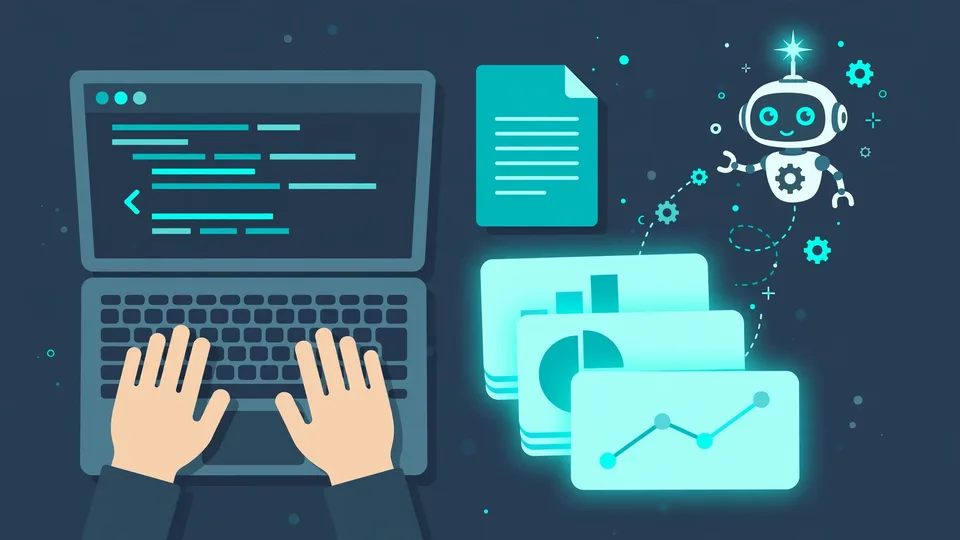
The core pipeline is one route; three more are worth knowing:
- Data-backed charts and tables. Charts ship as editable shapes by default; add
--native-charts-and-tablesto get real PowerPoint Chart / Table objects with Edit Data, saved as a separate_native_charts_tables.pptx. - Images. The agent can use its host’s native image tool, or
python3 skills/ppt-master/scripts/image_gen.py --list-backendsshows configured provider backends. For stock,image_search.pyworks with zero config (Openverse / Wikimedia Commons), and freePEXELS_API_KEY/PIXABAY_API_KEYvalues in.envmaterially improve results — start fromcp .env.example .env. - Your brand, your decks. PPT Master can distill reusable templates from your reference decks, fill an existing
.pptxwith new content while keeping its design byte-for-byte, and add native transitions, animations, and narration to a finished deck.
What you built
A local document-to-deck pipeline: source in, real .pptx out. The selling point is depth in PowerPoint’s native object model — native shapes with working adjustment handles, data-backed charts and tables, real slide masters and layouts, text that stays editable, formulas compiled to editable OMML (PowerPoint 2010+). Click any element and keep editing it like you built it by hand. Updating later is one script:
python3 skills/ppt-master/scripts/update_repo.pyHonest limitations
- The model sets the ceiling. PPT Master owns the workflow; the agent’s model owns the taste. Cheaper models mean more cleanup — if results disappoint, upgrade the model first, then check your usage against the Getting Started guide and the example projects.
- Don’t expect a perfect deck in one shot. The value is removing the tedious 80%; the polishing left is yours — a natively editable deck exists precisely so you can keep working on it.
- SmartArt is a deliberate omission, not a gap — the project’s PowerPoint ↔ SVG mapping guide is the honest record of what the native pipeline covers today.
- Data stays local apart from model communication — but every generation bills your model provider, so budget it like any API usage.
Hugo He, a finance professional who reviews decks for a living, built PPT Master for one reason: AI-generated slides kept coming back as uneditable images. The project has since passed 60,000 GitHub stars. Now you can stop wrestling with flattened exports and start from a deck that’s yours to edit.